Smart IPTV Setup, Step by Step: From MAC Address to Playlist
Smart IPTV setup takes four steps: install the Smart IPTV (SIPTV) app on your TV, open it once and note the MAC address it shows, upload your playlist link or file against that MAC on the developer's My List page at siptv.app, then restart the app. The developer gives Samsung TVs a 7-day trial, after which each TV or device is activated for a one-time fee of 5.49 EUR. The app is only a player: it includes no channels.
This guide belongs to our overview of IPTV player apps. Every step, version and message below comes from the developer's pages at siptv.app and the app's Google Play listing as we read them on November 18, 2026.
Which TVs and devices can run Smart IPTV?
Samsung and LG smart TVs, plus Android TV, Google TV and Fire TV devices. The developer states that it does not work on Samsung D series or older TVs, that Android phones and tablets are not supported, and that the Android version needs Android 5.0 or later.
| Platform | Current app version (developer's news page) | Where the developer says to get it |
|---|---|---|
| Samsung Tizen 6.5+ TVs (2022+ models) | 3.1.3 (posted 29 July 2026) | A new installation from the Samsung Apps Store; it is not an update to version 3.0.105 |
| LG webOS 3.0+ TVs | 3.1.3 (posted 15 July 2026) | The LG Apps Store, Entertainment category |
| LG Netcast and webOS 1.0-2.0 TVs | 2.1.56 | The LG Apps Store |
| Android TV, Google TV and Fire TV devices | 1.9.3 (posted 31 August 2026) | Google Play on Android TV; the developer's own APK for Fire TV and other boxes |
On Google Play the app is listed as "Smart IPTV" with in-app purchases and a free period to try it; the listing was last updated on 3 November 2026. For Android 13 and later, the developer says the app installs through Google Play only. It also warns that Smart IPTV apps listed in the Amazon Appstore are fake, so do not install those. Older Samsung model years have their own install routes on the developer's Samsung page.
For the TV side of things, such as which Samsung and LG models run which player, see our guide to IPTV on Samsung and LG smart TVs.
How do you set up Smart IPTV, step by step?
Install, open once, upload, restart. The upload happens in a browser on a computer or phone and is tied to your TV by its MAC address.
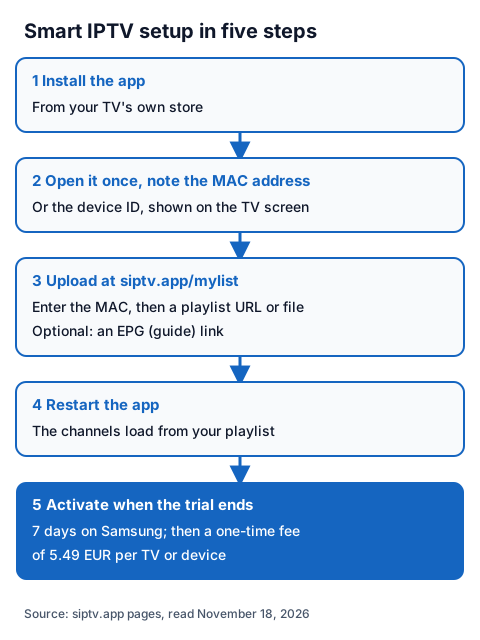
- Install the app from your TV's own store (see the table above).
- Open it once. The developer's error list says the MAC address is "not found" if you have not loaded the app at least once. Write down the MAC address (or device ID) shown on the screen.
- Go to siptv.app/mylist on a computer or phone. Enter the MAC, then either choose your playlist file or paste the playlist URL. You can also add a guide (EPG) link in the EPG field.
- Send it and restart the app on the TV. The channels load from your playlist.
- Check every channel you care about during the trial, then activate the TV only if everything works.
If your provider sent a host, username and password instead of a single link, the developer's Converter page has a "Convert Host Username Password to URL" option with m3u8, ts or mpegts output. Our walkthrough of the Xtream Codes fields explains what each part means.
Where do you find the Smart IPTV MAC address?
It is shown on the app's screen on the TV, and you copy it exactly into the My List page. The developer adds four cases where it changes or looks different.
- Two MACs per TV. Each TV has one MAC for Wi-Fi and one for Ethernet. If you switch connection type and restart the app, the second MAC is activated automatically.
- LG webOS, app 3.0.0 and later. The app shows a device ID instead of a MAC. If the TV was activated before, it activates automatically, and the old MAC can still be used to upload a playlist.
- Android installed from Google Play, or Android 13+. The MAC is not accessible, so a temporary device ID is used. Avoid a factory reset to keep the same ID.
- Android 10+ on Wi-Fi. Choose "Use Device MAC" instead of "Use Randomized MAC" (Settings, Network & Internet, select your network, Privacy), or the MAC changes on each reconnect.
To stop anyone replacing your playlist, lock your MAC or ID with a PIN in the app's settings; the developer says to lock it again with 0000 to remove the PIN.
Which options matter when you upload a playlist?
Most uploads need only the MAC and the URL; the other options on the My List page help when something goes wrong.
| Option | What the developer says it does |
|---|---|
| EPG country | Matches the guide's programme language to the right country |
| Detect EPG | Finds the guide URL included in the playlist (tvg-url, url-tvg, x-tvg-url) |
| Save online | Use only if the playlist will not load on the TV because of low memory |
| Disable plist logos / Override app logos | Turns off the playlist's logos, or uses only the playlist's logos (tvg-logo) |
| Disable Groups | Turns off playlist groups when you upload several playlists |
If you edit a playlist file, save it in UTF-8 without a BOM, as the developer asks. Our guide to adding an EPG source to an IPTV player explains what a guide link is and why times can be wrong.
How much is the Smart IPTV activation fee?
A one-time fee of 5.49 EUR for each TV or device, according to the developer's activation page, after the trial. The Samsung instructions give 7 days to try the app; the Google Play listing mentions a free period without naming a number of days.
How you pay depends on how you installed it:
- TVs and APK installs: on the activation page at siptv.app, by debit or credit card through Paymentwall or by cryptocurrency. The developer's FAQ says PayPal is no longer available.
- Google Play installs: in the app only, under Settings, Device Info, Activate. Paying on the website returns the error "Use Android In-App Purchase!".
The developer says not to pay if you have no channels for the app or something is not working: activation adds no channels and fixes neither.
What do the Smart IPTV error messages mean?
Each message points to one cause, according to the developer's My List page and FAQ. Start with the first fix in each row.
| Message | Cause, per the developer | What to try |
|---|---|---|
| MAC address is not found! | The MAC was typed wrongly, or the app has not been opened at least once | Open the app, copy the MAC again exactly |
| MAC address is not activated! | The TV is not activated | Activate it on the activation page, or in the app for Google Play installs |
| Your IP is reported for ban! | The MAC is locked | Unlock it in the app's settings (PIN 0000) and restart the browser |
| Check playlist URL, Server (URL) connection timeout, No playlist uploaded | The link is not direct, is offline, or the playlist is too large for the TV's memory | Test the developer's example list; upload the playlist as a file; unplug the TV for about 1 minute |
| Stream failed, Cannot connect, Buffering... | Dead stream links, or codecs the TV does not support | Test the example list; on LG webOS, try Stream Player Type "NC Auto" |
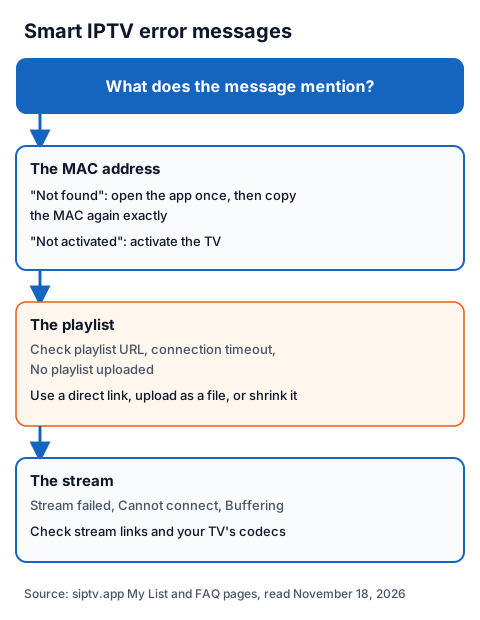
For a playlist that will not reload, the developer also suggests long-pressing "0" or "CH" on the remote, turning off Detect EPG or shrinking the playlist. If none of this works and the problem is the stream rather than the app, our IPTV fault checklist works through the causes.
Using an IG IPTV login with Smart IPTV
An IG IPTV login can be loaded into Smart IPTV as a playlist link, or converted from server URL, username and password with the developer's Converter. After payment, the login (server URL, username and password, or playlist and portal details) is sent on WhatsApp, and 24/7 WhatsApp support can help you upload it.
A standard plan streams on one screen at a time; the multi-room upgrade gives 2 to 4 simultaneous streams on one login. Picture quality runs up to 4K where the channel broadcasts it. UK plans start from £15 a month, and the 24-hour free trial with no card runs alongside Smart IPTV's own trial, so you can check your TV and the channels you want before paying for either. The IG IPTV subscription page lists every plan.
Frequently Asked Questions
Does Smart IPTV come with channels?
No. The developer's FAQ says the app includes no channels and gives no information about where to get them. You add your own playlist from your provider.
Can I use Smart IPTV on an Android phone?
Not according to the developer, whose Android page says phones and tablets are not supported yet. It runs on Android TV, Google TV and Fire TV devices with Android 5.0 or later.
Sources
- siptv.app: news (home), About, My List (playlist upload), Converter, Activation, FAQ, and the Samsung, LG and Android TV instruction pages, read November 18, 2026.
- Google Play, UK store: "Smart IPTV" listing, read November 18, 2026.
- IG IPTV plan prices and terms (igiptv.tv), read November 18, 2026.
Couldn't read: the Samsung and LG app stores (not readable from a browser, so availability there is described only from the developer's pages); the exact trial length for LG TVs and for Android installs (the developer's pages give 7 days only on the Samsung page); a price in pounds (the developer quotes euros only). The developer's Samsung page says in one place that the app is in the Samsung Apps Store and in another that Samsung suspended it, so check your TV's store.