How to Add an EPG Source to IPTV, Player by Player
To add an EPG source to IPTV, get the guide address (an XMLTV link) from your provider, open your player's TV guide or EPG settings, paste the address and refresh the guide. With an Xtream Codes login many players load the guide automatically, so you only add a link when the grid stays empty. If programmes show at the wrong time, use the player's time-shift setting; if only some channels are blank, their IDs in the playlist do not match the guide.

This how-to sits under our guide to judging a UK IPTV provider before you pay. The steps below come from the players' own documentation and store listings as we read them on November 18, 2026; for the players themselves, see our overview of IPTV player apps.
What do you need before you add an EPG source?
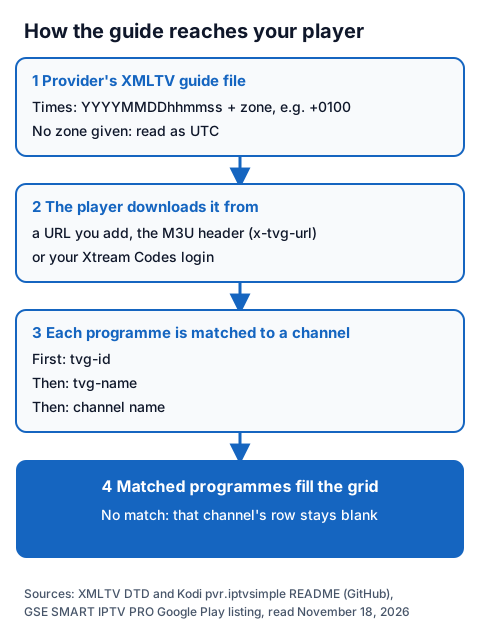
You need one thing: the address of an XMLTV file, the standard format for TV guide data. Your provider supplies it, either as a separate link or built into the login, and the player downloads it, reads the programme times and lays them out as a grid.
The XMLTV format, as its own definition file describes it, stores every time as year, month, day, hours, minutes and seconds (YYYYMMDDhhmmss), optionally followed by a time zone such as "+0100". If no time zone is given, UTC is assumed. That one rule explains most "wrong time" guides, covered further down.
| Your login type | Where the guide usually comes from | Do you add a link? |
|---|---|---|
| Xtream Codes (server URL, username, password) | The player requests it through the same login | Usually not; only if the grid stays empty |
| M3U playlist link | A guide address in the playlist header (x-tvg-url), if the provider includes one | Yes, if the player does not read the header |
GSE SMART IPTV PRO's Google Play listing shows the first route: its Xtream Codes support loads live channels, films and "EPG and movie info" automatically. Kodi's IPTV Simple Client documentation describes the second: an x-tvg-url in the M3U header is used only when the add-on's own settings contain no guide location. Our page on Smart Xtream player apps and login steps explains each part of that login.
How do you add an EPG URL in each player?
The pattern is the same everywhere: find the guide or EPG setting, choose a remote (URL) source, paste the link and update the guide. What differs is how much each developer documents.
- Copy the link exactly. Guide links are long; one missing character returns an empty guide.
- Open the player's guide settings. Look under the playlist's settings, or a section named TV guide or EPG.
- Add the source. Choose a URL or remote source rather than a local file, and paste the link.
- Update the guide. Use the player's update or refresh option, then wait; a large guide takes a while to download.
- Check one channel you know. Compare "now playing" with what is actually on.
| Player | What its developer documents | What we could not check |
|---|---|---|
| Kodi with IPTV Simple Client | EPG settings: Location (local or remote path), XMLTV URL, cache the file locally, EPG time shift from -12 to +14 hours; reads gzip and XZ files; auto refresh once a day or every set number of minutes, up to 120 | Nothing; the add-on's README is detailed |
| GSE SMART IPTV PRO | XMLTV guides from a local or remote file, in xml, zip or gz format; automatic guide with Xtream Codes (Google Play listing) | Menu names |
| TiviMate | A TV guide (EPG) grid; M3U, Xtream Codes and Stalker Portal logins (Google Play listing) | Step-by-step guide settings: the developer's site showed us no help pages |
| iMPlayer | "Full EPG Guide Support" (App Store listing); recent release notes mention EPG settings (Google Play) | Setup pages: implayer.tv refused our reader |
| IPTV Smarters | Not checked | The developer's site did not resolve, and the Google Play address we used returned "not found" |
In Kodi, the route is the add-on's settings, then the EPG section: set Location to "Remote path" and paste the link into XMLTV URL. Since Kodi 20 the add-on also accepts several playlist and guide pairs, added as extra add-on configurations. Our page on whether Kodi supports IPTV covers installing the add-on, and our review of iMPlayer covers that app.
Smart IPTV on Samsung and LG TVs works differently: the guide link goes into the EPG field at siptv.app/mylist when you upload the playlist, and a Detect EPG option reads the address from the playlist header. Our Smart IPTV setup steps, from MAC address to playlist show where each field sits. On Android, older guides often name Perfect Player for its guide grid, but the original app is no longer on Google Play; our page on what Android users install instead of Perfect Player lists current players with a TV guide.
Why is the IPTV guide an hour out, and how do you fix it?
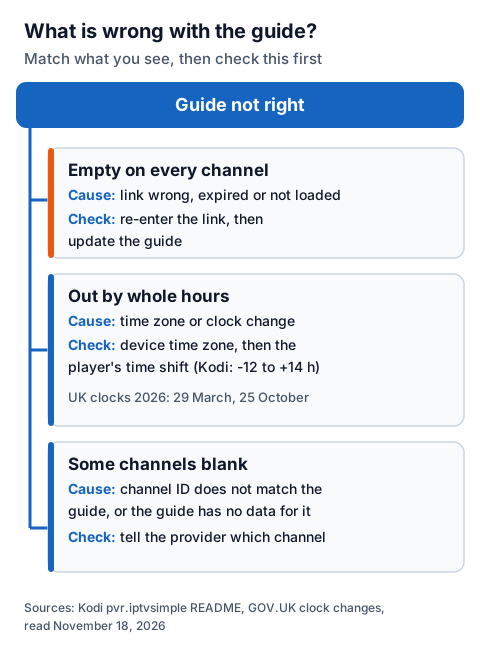
A guide that is out by a whole number of hours is a time-zone problem, not a broken link. Either the guide's times carry no time zone and are read as UTC, or your device or player is set to a different zone, or the clocks have just changed.
UK clocks, as GOV.UK sets out, go forward one hour at 1am on the last Sunday in March and back one hour at 2am on the last Sunday in October; in 2026 that was 29 March and 25 October. From late March to late October the UK is on British Summer Time, one hour ahead of GMT, which XMLTV writes as "+0100". A guide that was right in winter and is one hour out in summer often points to guide times written without a time zone.
Fix it in this order:
- Check the device's time zone. Set it to automatic, or to London for UK channels, then update the guide.
- Use the player's time shift. Kodi's IPTV Simple Client has "EPG time shift", from -12 to +14 hours, and an option to apply it to every channel.
- Shift one channel only when a single channel is out. In an M3U playlist this is the tvg-shift attribute, in hours, per channel or for the whole list.
- Recheck after the next clock change, since a manual shift does not move with the clocks.
Why are some channels missing from the guide?
When the guide fills for most channels but a few stay blank, the player could not match those channels to the guide data. Kodi's IPTV Simple Client documents the order it tries: first the channel's tvg-id against the guide's channel ID, then the guide's display name against the channel's tvg-name, then against the channel name.
So a blank row means one of three things:
- The IDs do not match. The playlist calls the channel one thing and the guide another. Kodi offers "Ignore Case for EPG Channel IDs" for a near miss; other players may let you assign a guide channel by hand.
- The guide has no data for that channel. Nothing you change at home adds it; tell your provider which channel is blank.
- The guide has not refreshed. Update it from the player's guide settings, or turn on automatic refresh where the player offers it.
An empty guide on every channel is different: the link is wrong, has expired or did not download. Re-enter it and update. Our IPTV fault checklist covers the login side if channels do not load either.
Avoid pasting guide links from unknown websites to fill gaps. Their channel IDs rarely match your playlist, and a guide only labels channels; it never adds any.
Adding the guide with an IG IPTV login
An IG IPTV login is sent on WhatsApp after payment: a server URL, username and password, or playlist and portal details. Enter it in any player that accepts Xtream Codes or M3U, then check the guide using the steps above. If the grid stays empty, message 24/7 WhatsApp support with your player's name and the channel, so the reply can point to the right setting.
Picture quality runs up to 4K where the channel broadcasts it, and UK plans start from £15 a month. The 24-hour free trial needs no card, so you can see the guide working in your own player before paying. If you watch sport, our checklist of what to check on sports channels during the trial starts with the guide rows. The IG IPTV UK plans page lists every price, and our page on choosing an Android box IPTV player helps if you are still picking an app.
Frequently Asked Questions
What is an EPG source in IPTV?
It is the address of a guide file, usually in XMLTV format, that lists each channel's programmes and times. The player downloads it and shows it as a TV guide grid.
How do I add EPG to IPTV with an Xtream Codes login?
Usually you do not have to: players such as GSE SMART IPTV PRO load the guide through the same login. Add a separate XMLTV link only if the grid stays empty after a refresh.
Why does my IPTV guide show the wrong time?
The guide's times may carry no time zone and be read as UTC, your device may be in another zone, or the clocks have changed. Check the device time zone, then the player's time-shift setting.
Can I add two EPG sources?
Some players allow it. Kodi's IPTV Simple Client accepts several playlist and guide pairs since Kodi 20. Extra sources only help when their channel IDs match your playlist.
Does an EPG source add channels?
No. A guide only describes programmes on channels your login already has. Channels come from your provider, and the provider's rights decide what you can lawfully watch.
Sources
- Kodi add-on pvr.iptvsimple README (GitHub, kodi-pvr), EPG settings, M3U attributes and channel matching, read November 18, 2026.
- XMLTV project DTD file (GitHub, XMLTV), date and time format, read November 18, 2026.
- GOV.UK "When do the clocks change?", read November 18, 2026.
- Google Play listings, UK store: "GSE SMART IPTV PRO" (droidvision), "TiviMate IPTV Player" (Armobsoft FZE) and "iMPlayer TV IPTV Player" (HzApps), read November 18, 2026.
- Apple App Store listing "iMPlayer IPTV Player" (Horizon Applications LLC), UK store, read November 18, 2026.
- IG IPTV plan prices and terms (igiptv.tv), read November 18, 2026.
Couldn't read: wiki.xmltv.org and kodi.wiki (both refused our reader, so we used the project files on GitHub); tivimate.com help (no help text shown to our reader); implayer.tv (refused our reader); the IPTV Smarters developer site (did not resolve) and its Google Play listing (returned "not found").