IPTV Black Screen: What It Means and How to Fix It
An IPTV black screen is a symptom, not one fault. If you hear sound but see no picture, your player cannot decode the video: switch between hardware and software decoding. If every channel is black and silent, the stream is not reaching you, so check your login, your plan dates and your connection. If only some channels are black, those streams use a format your device cannot play. A screen that blanks every few seconds usually points to the HDMI link or a refresh-rate switch.
This guide sits inside our wider IPTV troubleshooting guide. Start with the pattern below that matches your screen, run the one test for it, and only then start changing settings.
What your black screen is telling you
Your black screen tells you which layer failed. Two questions narrow it down: can you still hear sound, and is every channel affected or only some? A third, whether the picture comes back on its own, separates a cable or display problem from a stream problem.
| What you see | Layer that failed | First test |
|---|---|---|
| Sound, no picture | Video decoder | Switch hardware/software decoding in the player |
| Black and silent on every channel | Stream not arriving (login, plan dates, connection limit, network) | Open another streaming app on the same device |
| Black on some channels only | Stream format the device cannot decode | Play the same channel on a second device |
| Black every few seconds | HDMI link or refresh-rate switch | Turn off frame-rate matching; connect straight to the TV |
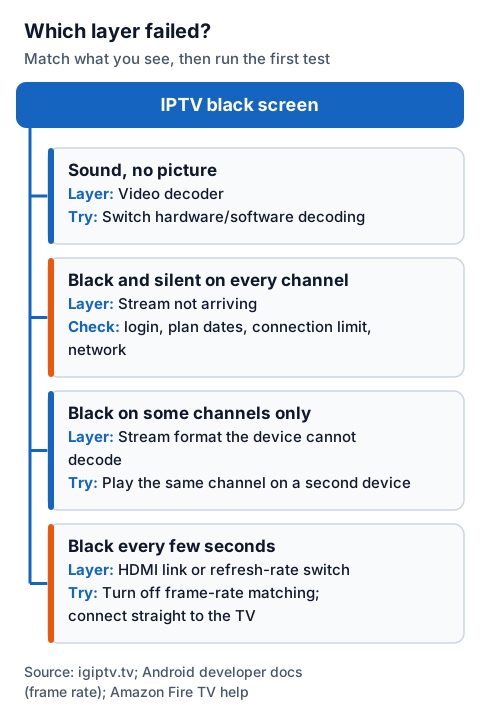
The order matters. A black and silent screen on every channel is almost never fixed by a decoder setting, and a decoder setting is the first thing to try when the sound plays on. Changing several things at once hides which one worked.
Black screen with sound
Sound with no picture means the stream is reaching you but the video inside it is not being decoded or shown. Audio and video travel as separate tracks, so the player can decode one and fail on the other. The reverse pattern, a picture with no sound, has its own causes, covered in our guide to IPTV with no sound.
Most players can decode video in two ways. Hardware decoding hands the work to the device's video chip, which is fast and efficient but only handles the formats and resolutions that chip was built for. Software decoding does the work on the main processor, which copes with more formats but works harder. When hardware decoding fails on a stream, a black picture with sound is a common result.
Amazon's developer specifications show how much this varies between models: some Fire TV sticks are rated for H.265 (HEVC) hardware decoding up to 1080p, the 4K models up to 4K at 60 frames per second, and the first-generation 2014 stick lists no H.265 decoder at all. Android's own list of supported formats names an H.265 HEVC decoder from Android 5.0, yet what a particular box decodes in hardware is down to its maker.
To fix it:
- Open the player's playback or decoder settings and switch from hardware to software decoding (or the reverse if it is already on software).
- Close the channel, reopen it and give it a few seconds.
- If the channel is offered in more than one quality, try the lower one. Picture quality runs up to 4K where the channel broadcasts it, and a 4K stream is the one most likely to exceed an older device's decoder.
If you watch through a soundbar or AV receiver, test with the device plugged straight into the TV. Amazon's help pages note that a receiver or soundbar port needs HDCP 2.2 to pass 4K through.
Black screen and no sound on every channel
When every channel is black and silent, the stream is not reaching your player at all. That points at the account, the server address or the network, not at the video settings, so work through the checks below in order.
| Check | How to check it | What it rules out |
|---|---|---|
| Network | Open another streaming app or a video site on the same device | Your broadband, Wi-Fi or router |
| Login and server address | Re-enter the username, password and server URL exactly as sent | A typo or an old server address |
| Plan dates | Check the end date on your account or in the player's account screen | An expired plan or trial |
| Connection limit | Stop playback on every other device using the same login, then retry | A second device already watching |
The connection limit is easy to overlook. A standard IG IPTV plan streams on one screen at a time; the multi-room upgrade gives two to four simultaneous streams on one login. When the limit is already in use on another device, players often show a black screen or an error, depending on the player, rather than a clear message. Our guide to single versus multiple IPTV connections explains how the limit works.
If the player shows a login error rather than a black screen, the IPTV Smarters "failed to authorize" fixes cover the credential side in detail. If the picture loads but stalls and spins, that is a bandwidth problem, and the IPTV buffering checklist is the better place to start.
Black screen on some channels only
Black on some channels only means those particular streams use a format, resolution or frame rate your device or player cannot handle, or that the channel itself is down. Everything else about your setup is working, because other channels play.
One test separates the two causes: play the same channel on a second device on the same Wi-Fi. A phone or tablet with an IPTV player installed is enough.
- It plays on the second device. The stream is fine and the first device or its player cannot decode it. Try the decoder switch from the section above, update the player, or try a different player on the first device.
- It is black on both. The channel is the problem, not your equipment. Note the channel name and tell support, because nothing you change at home will bring it back.
This pattern often shows up on 4K or H.265 channels watched on an older HD device, since those are the streams most likely to exceed its decoder.
Black screen every few seconds
A picture that drops to black for a second or two and then returns is usually the TV and the player renegotiating the display signal, not the stream failing. One documented trigger is a refresh-rate switch, described in Android's frame-rate documentation.
That documentation says it plainly: on some devices, refresh rate switching may cause a black screen for a second or two, and this typically occurs on set-top boxes and TV panels. It happens when a player asks the TV to change its refresh rate to match the video's frame rate. Android calls the user setting that allows this "Match content frame rate", and many IPTV players have their own equivalent option.
To fix it:
- Turn off frame-rate matching, in the device's display settings and in the player's own settings if it has one.
- Plug the streaming device straight into the TV instead of through a soundbar, receiver or HDMI switch.
- Try a different HDMI cable and port. Amazon recommends a high-speed HDMI cable and unplugging and re-plugging it as part of its own display troubleshooting.
If the blanking happens on one channel only and the rest play steadily, treat it as the "some channels only" pattern above instead.
Fixes by device: Fire TV Stick, Samsung and LG TVs, MAG boxes
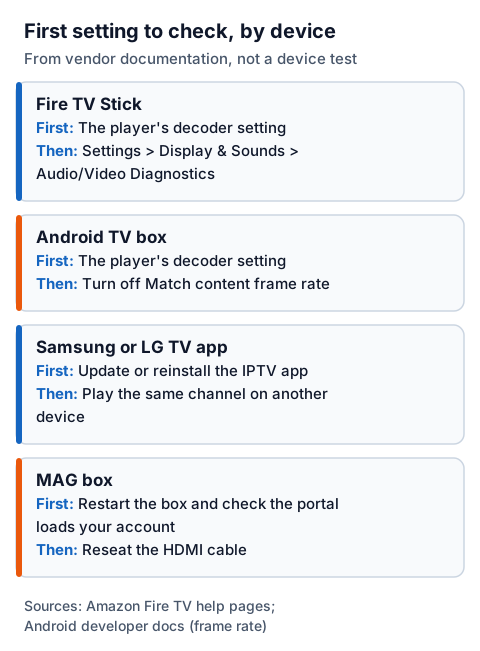
The first thing to check depends on the device. On a Fire TV Stick or Android box, start with the player's decoder setting; on a Samsung or LG TV, start with the app itself; on a MAG box, start with the portal and the HDMI link.
| Device | First setting to check | Then |
|---|---|---|
| Fire TV Stick | The player's decoder setting | Settings > Display & Sounds > Audio/Video Diagnostics, which checks the TV's maximum resolution and refresh rate |
| Android TV box | The player's decoder setting | Turn off Match content frame rate if the picture blanks every few seconds |
| Samsung or LG TV app | Update or reinstall the IPTV app | Play the same channel on another device to see whether the TV's app is the problem |
| MAG box | Restart the box and check the portal loads your account | Reseat the HDMI cable or try another TV input |
Fire TV Stick. Amazon's help pages put the Audio/Video Diagnostics tool under Settings > Display & Sounds, and note that it is not available on every Fire TV device. If an app misbehaves, Amazon suggests restarting the stick (unplugging it for one minute) and clearing the app's cache and data. Our Fire TV Stick IPTV setup guide covers installing a player from scratch, and the IPTV for Firestick plans page explains what you need to watch on one.
Samsung and LG TVs. Apps on Tizen and webOS play through the TV's own decoders, and there is no HDMI link between the app and the screen, so the cable and refresh-rate causes do not apply. If one app shows black on channels that play elsewhere, try another player from the Samsung and LG smart TV IPTV guide.
MAG boxes. A MAG box loads channels from a portal linked to the box's MAC address, so a black screen on every channel is usually the portal or the account. The MAG box IPTV setup guide shows where the portal address goes.
Is it your setup or the provider?
If the same channel plays on a second device on the same Wi-Fi, the fault is with the first device or its player, not the service. If it is black on every device you try, the problem is the channel or the account, and the provider should hear about it.
A stream that plays on a phone but not on a TV has reached your home intact, so the fix is in the TV, its device or its player. If it is black on every device, the problem is the channel or the account; send support the channel name and device.
Still black on every channel? Message our 24/7 WhatsApp support with your device, the app you use and the channel name, so the first reply can be a fix rather than a question. Not a customer yet? The 24-hour free trial needs no card, so you can check that the channels you care about play on your own TV before paying.